Unleashing Senayan Library Management System(SLIMS )

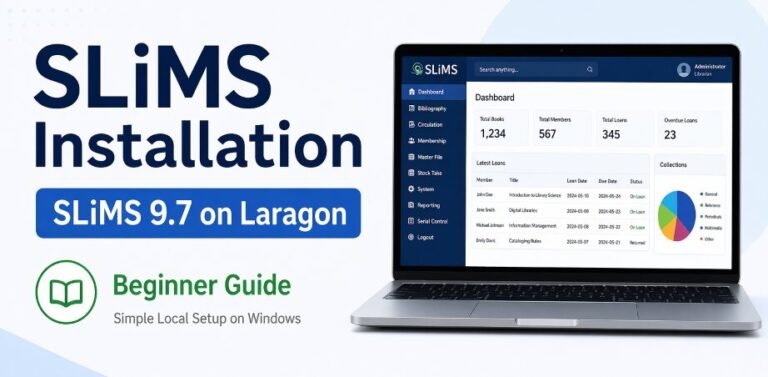
Senayan Library Management System (SLiMS) is open source integrated library management software developed by  Indonesian Library Community in 2007, about 17 versions of SLiMS have been released. It is licensed under the GPL v3. The web application developed by a team from the Center for Information and Public Relations of the Ministry of National Education Republic of Indonesia was built using PHP , database MySQL , and version control Git . In 2009 , Senayan won INAICTA2009 for the open source category. A total of 250 thousand more times the program has been downloaded. 

Senayan has now developed far. It not only displays book data, but can also display images, sound, electronic books, and even videos. Hendro and his team are also developing so that each Senayan user server can “talk” to each other, so that later a gate can be built to find book data in the network that can browse all catalogs. “Later there will be a gate so that the search for books is only through one site. source wikipedia 

  History and Features of SLIMS

SLIMS was first launched in 2006 as an open-source library management solution for Indonesian libraries. SLIMS was created by a library and developer community for better accessibility for the library patrons.

One of the user-friendly features of SLIMS is that it has a simple slide for navigation for the library patrons and library staff. SLIMS allows multi-access users to collaborate.

Another cool aspect of the SLIMS system is circulation management, which allows library managers to lend books more efficiently and more streamline to library patrons.

The reporting tools help users produce data on how the library was used. Together, these features mean the SLIMS system is not just versatile, but can be modified for many different library environments across the globe.

Advantages of SLIMS for Libraries

SLIMS has many advantages that help library systems improve. The interface is simple, and staff and patrons can easily operate the system, which means that training time is very limited.

The system helps improve cataloging, and libraries can easily maintain their collections and keep their titles accurate and accessible. This helps to improve the experience patrons get.

The circulation capability also helps to enhance the lending process, especially when checkouts and returns are involved. The patrons get served quickly to boost their satisfaction.

The strong reporting function that SLIMS has helps the librarian to have the right data about how the library was used and how the books performed, so that further purchases can be guided.

Moreover, being an open-source system means there is lots of collaboration to improve the system and how libraries can use it.

The Installation and Setting up of SLIMS

The first step to installing SLIMS is to get it from the system’s home page. The installation process is simple to follow.

Make sure that your server meets the system’s requirements of having PHP, MySQL, and an Apache server before installation.

Now, create a directory on your server and unzip the files you downloaded. Then create a MySQL database for SLIMS. You can do this via phpMyAdmin or any database management tool you prefer.

Now that we’ve done that, go to your web browser and type in the URL for the installation. Follow the instructions on the screen. You will probably need to enter your database information and create an admin account for easy future access.

Now that you have successfully configured everything, you can adjust other settings in line with your library’s objectives. You can add branches or change the rules that govern the circulation of books.  If you have all the needed materials, the entire process can take a few minutes.

Slims an overview:

Koha Integrated Library Management System: Complete Beginner Guide

Koha Integrated Library System

If you are new to library software, Koha can sound harder than it really is.

You may hear terms like ILMS, OPAC, cataloging, circulation, and patrons, then feel lost before you even begin. That is the problem with most beginner content on this topic. It explains features, but it does not explain the system in plain English.

This guide does.

You will learn what Koha Integrated Library Management System is, how it works, what its main modules do, where beginners usually struggle, and whether it is the right fit for your library. Koha’s official site describes it as a fully featured, scalable library management system, and the project remains actively maintained with ongoing releases and a living manual.

What is Koha Integrated Library Management System?

Koha is an open-source library management system that helps libraries manage books and other materials, patrons, borrowing, returns, holds, and reports in one place. Instead of handling these tasks across paper registers, spreadsheets, and separate tools, Koha brings them into one connected system. The official project calls it the world’s first free and open source library system.

In simple words, Koha is the software that runs the daily work of a library.

What does “integrated” mean in a library system?

The word integrated is where many beginners get confused.

It means the parts of library work connect to each other. When a book is added to the system, it can later appear in the public catalog, be issued to a patron, renewed, put on hold, and counted in reports without entering the same data again and again. Koha’s manuals document these connected areas through modules such as acquisitions, circulation, patrons, cataloging, OPAC, serials, administration, and reports.

That is the real value of an integrated library management system.

A basic spreadsheet can list titles. An integrated system can run the library.

Koha at a glance

Part of KohaWhat it doesSimple beginner example
CatalogingCreates and manages bibliographic recordsAdd a new textbook to the library database
CirculationHandles checkouts, returns, renewals, and holdsIssue a novel to a student and check it back in later
PatronsStores member accounts and categoriesAdd a teacher, student, or public member
OPACPublic search catalog for usersLet readers search books online
AcquisitionsTracks vendors, orders, and budgetsRecord books ordered from a supplier
SerialsManages journals and newspapersTrack monthly magazine issues
ReportsPulls lists, statistics, and activity dataSee most borrowed books this month
AdministrationControls settings, rules, and permissionsSet loan limits and item types

Koha’s official documentation covers these areas in detail, including acquisitions, circulation, patrons, OPAC, serials, reports, and administration.

How Koha works in real life

The easiest way to understand Koha is to follow one item through the system.

A library orders ten new books from a vendor. In Acquisitions, staff can record the order and manage the budget. When the books arrive, staff adds or imports the records in Cataloging. Then item records such as barcodes, status, and location are attached. Next, those items appear in the OPAC, where users can search for them. At the desk, staff uses Circulation to check the books out and back in. Later, the library can use Reports to see how often those books were borrowed. Koha’s manuals document each of these steps across the acquisitions, cataloging, OPAC, circulation, and reports areas.

That is the system in one sentence: enter once, use everywhere.

Read Also: LIVE DVD of Koha, DSPACE, SLIMS WordPress, Joomla on Ubuntu 18.0.4

Why beginners choose Koha

The first reason is cost structure.

Koha is open source, so there is no software license fee in the usual proprietary sense. That makes it attractive to schools, colleges, public libraries, and smaller institutions that want more control over their systems. The Koha project itself describes the software as free and open source.

The second reason is flexibility.

Koha can support different kinds of libraries because it is modular and configurable. The documentation is broad because the software can be adapted for different workflows, collection types, and circulation rules.

The third reason is active development.

Koha is not dead software sitting on an abandoned server. The official site shows ongoing releases, and the documentation is maintained regularly. That matters because a library system needs updates, fixes, and documentation that stay alive.

The honest part: where Koha feels hard for beginners

This is where weak articles lie to you.

Koha is not a plug-and-play phone app. The official download page recommends package-based installation on modern Debian-based distributions, and the documentation around installation and onboarding makes it clear that setup is structured, not casual.

That means “free” does not equal “effortless.”

You may still need hosting, backups, updates, staff training, data cleanup, and technical help. If your current records are messy, Koha will expose that mess fast. Similarly If circulation rules are unclear, the setup gets sloppy. If the team wants a system but not the discipline that comes with a system, Koha will feel harder than expected. That is not a flaw in Koha. That is a workflow problem on your side.

Main Koha modules beginners should understand first

1. Cataloging

Cataloging is where library records are created and edited.

Koha’s cataloging documentation includes MARC-based record work and even a bibliographic record cheat sheet for MARC21. For beginners, that means this area is where you add the intellectual description of a book or other resource before you attach item-level details such as barcode or location.

2. Circulation

Circulation is the desk workflow.

This is where checkouts, check-ins, renewals, holds, and daily borrower activity happen. Koha’s circulation manual also makes clear that core preferences, parameters, and patron circulation rules need to be set before the collection starts circulating.

3. Patrons

The patrons area manages member records.

This is where you add students, faculty, public users, or staff members. Koha’s patrons manual shows that new patrons are created from the Patrons module and linked to patron categories.

4. OPAC

OPAC stands for the public-facing online catalog.

This is the side that users search. Koha’s OPAC settings document advanced search options, item-type filters, location filters, authority search, holds-related display options, and patron self-renewal options when configured by the library.

5. Acquisitions

Acquisitions handles ordering and budget tracking.

Koha’s acquisitions module is used to record vendor orders and manage purchase budgets. This matters for libraries that regularly buy books, journals, or other materials instead of just cataloging donations or existing stock.

6. Serials

Serials is for publications that arrive on a repeating schedule.

Koha’s serials module is used to track journals, newspapers, and other regularly issued materials. This is useful for academic libraries and institutions with periodical subscriptions.

7. Reports

Reports help turn your database into usable decisions.

Koha’s reports module is built to generate statistics, member lists, shelving lists, and other data views. The guided report wizard also helps users build reports step by step.

What you should prepare before installing Koha

Do not start with the server.

Start with your library decisions.

Before installation, be clear on these points:

  • How many branches or locations do you have?
  • What item types do you lend?
  • What patron categories will you use?
  • What are your loan periods, fines, renewals, and hold rules?
  • Who will manage updates and backups?
  • Are you self-hosting or using a support provider?

Koha’s onboarding tool itself reflects this logic. It requires at least one library, one patron category, one patron, one item type, and one circulation rule before you can properly start using the system.

That should tell you something important.

The software is built around policy. If your policies are vague, your setup will be messy.

Beginner setup checklist for Koha

Use this order. Do not jump around.

StepWhat to doWhy it mattersCommon beginner mistake
1Create your library or branchGives the system a base structureAdding books before branch setup
2Create patron categoriesDefines who can borrow and under what rulesTreating all users the same
3Create staff/admin patronGives you access to the staff interfaceWeak admin setup
4Create item typesSeparates books, journals, DVDs, reference items, and moreUsing one item type for everything
5Set circulation rulesControls loan periods, renewals, and limitsSkipping policy setup
6Review cataloging setupPrevents messy records laterImporting data too early
7Add or import recordsBrings your collection into the systemImporting duplicates
8Test OPAC searchConfirms users can find itemsIgnoring public search experience
9Test checkouts and returnsConfirms circulation works correctlyGoing live without testing
10Run starter reportsChecks data quality earlyWaiting too long to verify records

The order above follows what Koha’s onboarding and circulation documentation make necessary: basic parameters first, then patron and circulation rules, then actual use.

Aditional Reading : Automated Koha Installation on Ubuntu 24.04 & Ubuntu 25: Bash Script method

Koha vs manual library management

A register or spreadsheet can work for a very small collection.

But once the library grows, manual tracking starts breaking down. Searching becomes slower. Borrowing history gets harder to follow. Holds become awkward. Reports become unreliable. Public search is limited or non-existent.

Koha is better when you need one connected workflow instead of scattered records.

That is the key decision point. If your library only needs a list, a spreadsheet may survive for a while. If your library needs circulation control, patron accounts, searchable records, and usable reports, a proper system makes more sense.

Koha vs paid library software

Here is the blunt version.

Koha usually wins on flexibility, control, and license freedom.

Paid systems often win on packaged onboarding, vendor-managed support, and lower technical responsibility on your side.

So do not ask, “Which one is best?”

Ask, “Which kind of burden do we want?”

With Koha, you get more control, but you also take more responsibility for setup, hosting, maintenance, and internal discipline. The official project’s installation and documentation structure makes that trade-off pretty clear.

Common beginner mistakes with Koha

Confusing OPAC with the staff side

The OPAC is the public search side. The staff interface is where the real management happens. If your team confuses the two, training gets messy fast. Koha documents these areas separately for a reason.

Importing bad data

If your old data is incomplete, duplicated, or inconsistent, importing it into Koha will not magically clean it. It will just move the mess into a better system.

Skipping circulation rules

This is one of the big mistakes because Koha literally warns you through its documentation that core preferences, parameters, and patron circulation rules should be set before circulation begins.

Over-customizing too early

Beginners often want to change everything before they understand anything.

That is backwards.

Start with a working basic setup. Then improve it.

Ignoring patron categories and item types

Patron categories and item types are not small details. They control how the system behaves. Koha’s onboarding process includes them because they are foundational, not optional.

Is Koha right for your library?

Koha is a strong fit when your library wants a real management system, expects growth, and is willing to define rules clearly.

It is a strong fit for schools, colleges, public libraries, and specialized libraries that want control and flexibility.

It is a weaker fit when your collection is tiny, your workflow is informal, and nobody on your side is ready to manage setup, policy decisions, or support.

That is the part many people avoid admitting. Sometimes the problem is not choosing the software. Sometimes the problem is wanting system-level results without system-level discipline.

Final thoughts

Koha Integrated Library Management System is powerful because it handles real library workflows, not just book lists.

That is also why beginners can find it intimidating at first.

Still, once you understand the basics, Koha becomes far less mysterious. It is simply a connected system for cataloging, circulation, patrons, public search, acquisitions, serials, and reporting. The official Koha project and manual show a platform that is broad, actively maintained, and built for libraries that want serious workflow control.

If your library wants structure, searchability, and room to grow, Koha is worth learning.

If your library wants zero setup, zero planning, and zero responsibility, Koha is not your shortcut.

That is the honest answer.

FAQ section

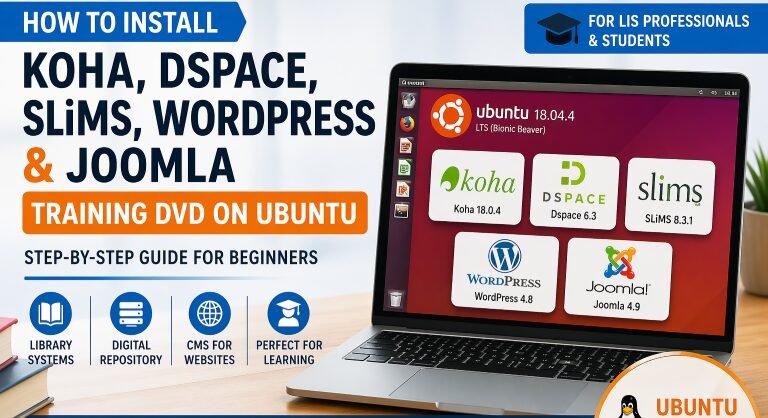
LIVE DVD of Koha, DSPACE, SLIMS WordPress, Joomla on Ubuntu 18.0.4

Ubuntu Live DVD

Editor’s note before you begin

This guide is about a training image built on Ubuntu 18.04.4. That version is now a legacy release, not the latest Ubuntu Desktop version, and Ubuntu says its standard support ended on May 31, 2023. Publish this post as a learning lab guide, not as a production deployment guide. For live systems, use the official installation methods for each platform.

What this training DVD is

This live DVD is a ready made Ubuntu learning environment for Library and Information Science professionals and students. Instead of installing every package one by one, you get a single image that already includes a library system, a repository platform, and two website tools.

That makes it useful for classroom demos, lab practice, and self learning. A student can install one system and explore several major tools without spending hours fixing dependencies first.

What is included in the DVD

According to the package list provided with this custom image, the DVD includes:

PackageVersion in this imageMain purposeGood for beginners who want to learn
Koha18.0.4Integrated library systemCataloging, circulation, patron records
DSpace6.3Digital repositoryTheses, papers, institutional content
SLiMS8.3.1Library management systemFast library workflows and OPAC basics
WordPress4.8Content management systemLibrary websites, blogs, announcements
Joomla4.9*Content management systemAlternative website building practice

*Use the version exactly as listed in your custom image notes.

Koha is officially documented as a package based install on modern Debian or Ubuntu systems, while DSpace is an open source repository platform and SLiMS is an open source library management system created in Indonesia.

Why beginners may like this setup

If you are new to Linux, the hardest part is usually not learning the software itself. The hardest part is getting Apache, databases, PHP, permissions, and services working together.

This training image removes much of that early friction. You install once, then start learning the tools.

Here is a simple example. A library student can:

  1. Open Koha and create a sample book record
  2. Open DSpace and upload a thesis PDF
  3. Open SLiMS and compare its OPAC workflow
  4. Open WordPress and build a simple library news page

That is much easier than doing five separate server installations in one weekend.

Who this guide is for

This guide is best for:

  • LIS students
  • library staff learning open source tools
  • trainers running software demonstrations
  • beginners testing software in a lab
  • anyone who wants a low pressure practice environment

This guide is not best for production servers, public websites, or institutional deployments. For those, follow the official install guides for each application and use currently supported operating system versions.

Before you start

You need a few basics before installation:

  • the ISO file
  • a USB drive
  • a laptop or desktop, or VirtualBox
  • time for the download
  • backup of any important files if you are installing on a real machine

A USB drive is the better option for most beginners. Ubuntu documents both trying Ubuntu from USB and running it inside VirtualBox. For classroom testing, a virtual machine is often safer because it does not touch your main operating system.

Download the ISO file

Add your Google Drive download button or download box in this section.

Suggested text for the page:

Download the training ISO file from the link provided above. The file is larger than 2 GB, so the download may take time depending on your internet speed. Use a stable internet connection and wait for the download to finish completely before creating the bootable USB.

A practical tip for beginners: after the download finishes, do not move the file around too much. Save it somewhere easy to find, such as your Downloads folder or desktop.

Create a bootable USB

A USB drive is recommended because large ISO files often boot more reliably from USB than from DVD. Ubuntu’s own installation docs focus on creating a bootable USB and then booting from it.

Simple beginner method

  1. Insert your USB drive
  2. Open a USB imaging tool such as Rufus or balenaEtcher
  3. Select the downloaded ISO file
  4. Select your USB drive
  5. Start the process
  6. Wait until the tool finishes writing the image

If you are teaching a class, create one tested USB first before making more copies. That saves time later.

Install the DVD on a laptop or desktop

Once your USB is ready, follow these steps:

Step 1: Boot from USB

Restart your computer and open the boot menu or BIOS settings. Choose the USB drive as the boot device.

Step 2: Start the Ubuntu installer

When the Ubuntu desktop loads, start the installation using the shortcut provided on the desktop.

Step 3: Follow the normal Ubuntu installation steps

This custom image installs in a way that is similar to a normal Ubuntu Desktop installation. Ubuntu’s standard flow includes booting from USB, choosing installation settings, creating a login, and completing setup.

Step 4: Restart after installation

After installation finishes, restart the system and log in to the new Ubuntu setup.

Install it in VirtualBox instead

For many beginners, VirtualBox is the safer choice.

Ubuntu documents VirtualBox as one of the easiest ways to try Ubuntu Desktop on different operating systems. That is helpful if you want to practice Koha or DSpace without changing your main laptop.

When a virtual machine is the better option

Use a VM if:

  • your laptop is used for daily work
  • you are afraid of partitioning mistakes
  • you only want to test the software
  • you are a student doing short practice sessions

Simple example

If you are preparing for a class demo, install this image in VirtualBox first. Once it works, you can show Koha, DSpace, SLiMS, WordPress, and Joomla from one safe training environment.

Post installation setup

After Ubuntu finishes installing, do these three tasks.

1. Create the library-koha user

Open Terminal and run:

sudo adduser library-koha

The system will ask for the superuser password. Then set a password for the new library-koha user and fill in the requested details.

2. Start Apache

Run:

sudo service apache2 start

This starts the web server used by the included applications.

3. Change the permission of the Koha config file

Open a new terminal and run:

sudo chmod 755 /etc/koha/conf.xml

This step uses the original instructions provided with the training image. Because this is a classroom style build, keep reminding readers that default settings should be reviewed before any serious deployment.

Open each package after installation

Once services are running, open Firefox or Chrome and use the local addresses below.

PackageLocal address
Koha Adminhttp://localhost:8088/
Koha OPAChttp://localhost:8089/
DSpacehttp://localhost:8080/jspui
SLiMShttp://localhost/slims
WordPresshttp://localhost/wordpress
Joomlahttp://localhost/joomla

Default usernames and passwords

PackageUsernamePassword
Koha AdminlibrarianDsi@2018
Koha OPAConlinevws@gmail.comdsi@2018
DSpaceadmindsi@2018
SLiMSadminFaheem@2018
WordPressadmindsi@2018
Joomlaadmindsi@2018

Important safety note

Change all default passwords after your first login. That matters even in a classroom lab, and it matters even more if the machine will stay on a network.

What each package is best for

Beginners often get confused because all of these tools look related. They are not the same.

ToolBest useQuick beginner explanation
KohaLibrary operationsUse it to manage books, members, circulation, fines, and OPAC
DSpaceInstitutional repositoryUse it to store theses, papers, reports, and research output
SLiMSLibrary catalog and circulation practiceUse it when you want a simpler library workflow
WordPressLibrary websiteUse it for news, blog posts, events, and basic pages
JoomlaStructured website buildingUse it if you want to compare another CMS with WordPress

A simple rule helps: Koha and SLiMS manage library collections, DSpace manages digital repository content, and WordPress or Joomla manage websites.

A 30 minute practice lab for students

This is a useful section many install posts miss.

Practice task 1: Koha

Create one sample book record and search for it in OPAC.

Practice task 2: DSpace

Upload one PDF thesis or report and check if the item appears correctly.

Practice task 3: SLiMS

Add one title and compare its cataloging screen with Koha.

Practice task 4: WordPress

Publish one short announcement called “Welcome to Our Library”.

Practice task 5: Joomla

Create one test page and compare how page editing feels compared with WordPress.

This kind of quick lab makes the article more useful than a basic install post.

Common problems and quick fixes

ProblemLikely causeQuick fix
USB does not bootBoot order is wrongEnter BIOS or boot menu and select USB first
Installer starts but fails laterBad USB write or incomplete ISO downloadRecreate the USB and verify the ISO downloaded fully
localhost does not openApache is not runningStart Apache with sudo service apache2 start
Koha page loads badlyPermission or service issueRecheck the conf.xml permission command
System feels slowRunning in a VM with low resourcesShut down unused apps and give the VM more memory if possible

A practical classroom tip: test the machine once after installation, then create a snapshot if you are using VirtualBox. That way, students can return to a clean state quickly.

Conclusion

This Ubuntu training DVD gives beginners a practical way to explore Koha, DSpace, SLiMS, WordPress, and Joomla in one place.

That is its biggest strength.

It is not the newest stack, and it should not be presented as a production solution. But for classroom practice, software demos, and self learning, it can still save a lot of time.

If you publish this article, the best next step is to build supporting tutorials around each package. That will strengthen your internal linking, improve topical authority, and create more AdSense friendly informational content around library technology.

FAQ

How to Install portable SLiMS on Windows in 5 Minutes

Slims

SLiMS (Senayan Library Management System) is an open-source, fee-free library automation system developed in Indonesia. It is widely used around the world for managing library operations efficiently. SLiMS is coded in PHP and uses MySQL or MariaDB as its database. The platform is cross-platform, meaning it can be installed on both Windows and Linux systems, as well as on mobile devices.

SLiMS comes with various templates and plugins that provide extended functionality, making it a powerful solution for modern library management.

Key Features of SLiMS:

  • Open-source and free to use
  • Cross-platform compatibility (Windows, Linux, and mobile)
  • Uses PHP and MySQL/MariaDB for seamless library automation
  • Rich in templates and plugins for added features

In this guide, we will walk you through the installation process of SLiMS 9.5 (Portable), which includes Apache, MySQL, and SLiMS bundled into a convenient software package for Windows.

What is SLiMS 9.5 (Portable)?

SLiMS 9.5 (Portable), also known as Psenayan, is a complete package for library automation. It includes:

  • Apache Web Server
  • MySQL Database
  • SLiMS Library System

This portable version of SLiMS simplifies the installation process by eliminating the need to install separate web servers or databases. It also includes the YAZ library, enabling copy-cataloging using the Z39.50 protocol. This all-in-one setup is ideal for Windows 7 or higher systems.

How to Install SLiMS 9.5 (Portable) on Windows

Follow these steps to install SLiMS 9.5 (Portable) on your Windows PC.

Step 1: Download SLiMS 9.5 (Portable)

To get started, download the SLiMS 9.5 portable version. Choose the appropriate version for your system:

Step 2: Extract the Files

Once the ZIP file is downloaded:

  1. Copy the ZIP file to the root directory (e.g., C:\ or D:) — avoid placing it inside any subfolders.
  2. Extract the pslims9.zip* file directly into the root directory.

Step 3: Run the Server Applications

After extracting the files:

  1. Open the amd64 (64-bit) or x86 (32-bit) directory.
  2. Run httpd.bat to start the Apache server.
  3. Run mariadb.bat to start the MySQL database server.
    Note: Always run these files by double-clicking on them and keep the windows open (or minimized) while the servers are running.

Step 4: Access SLiMS via Browser

Now that your server is running, open your browser (preferably Firefox or Chrome) and type the following URL:

The default login credentials are:

  • Username: admin
  • Password: admin

Congratulations, Your Installation is Complete!

Once you’ve logged in, you’re all set to use SLiMS for your library management needs. For security reasons, make sure to change the default login credentials, especially if you plan to use SLiMS in a production environment.

Stay Updated with SLiMS Tutorials

For more helpful tutorials and updates on SLiMS and other library automation software, make sure to subscribe to our YouTube channel. Stay informed with new video content related to library management systems, SLiMS tips, and much more.

Keep visiting vwsonline.org for additional tutorials and guides.

Frequently Asked Questions (FAQs)

1. What is SLiMS and why should I use it?

SLiMS is an open-source library management software that automates various library functions such as cataloging, circulation, and user management. It’s highly customizable and offers features like Z39.50 copy-cataloging and a wide array of plugins, making it a great solution for libraries worldwide.

2. Can SLiMS be used on Mac or Linux?

Yes, SLiMS is cross-platform and can be installed on Windows, Linux, and macOS. The portable version provided in this guide is designed for Windows, but it can also be configured to run on other operating systems with some additional steps.

3. How do I access SLiMS after installation?

Once the server is running, open a browser and go to http://localhost:8089 to access the OPAC (Online Public Access Catalog). To access the Librarian Interface, use http://localhost:8089/bulian/index.php?p=login and log in with the default credentials:
Username: admin
Password: admin

4. How do I change the default login credentials?

For security reasons, it’s important to change the default login credentials immediately after installation. To do this, log in to the Librarian Interface and navigate to the user management section where you can modify the admin credentials.

5. Can I use SLiMS for large libraries?

Yes, SLiMS is capable of managing libraries of various sizes, including large collections. It supports multiple users and can be customized to suit the needs of both small and large libraries. The scalability of SLiMS depends on the system resources and proper configuration.

6. Is SLiMS free to use?

Yes, SLiMS is open-source and free to use. It is developed by the Indonesian government to improve library management and is available for public use without any fees.

7. How do I update SLiMS?

To update SLiMS, visit the official website or repository to download the latest version. Follow the installation guide for the updated version, ensuring that any database migrations or updates are handled carefully to prevent data loss.

Dspace 6 Installation on Windows: Step by Step Guide

DSpace is the most widely used software for creating digital archives. It free and open source software. It is freely available online and community of experts is working on its development and improvement. It is multiplatform software which can work on Linix based as will as Windows based operating system.

This tutorial is about dspace installation on windows based system following are the steps required for installation of dspace on windows (windows 7 or latest)

Steps of Installation

Step I: Pre-requisite Software

To run dspace on windows following are the free-requisite softwares. Which are available online and can be downloaded free of cost. You’ll need to install theseepre-requisite software (for DSpace 3.x and higher).

(Java Development Kit): Dspace requires version 6 or other latest version which available free on oracle website. Click on Java SDK to download.
PostgreSQL 8.x for Windows. It is powerful open source database system and can be installed on windows exelly as it comes with a Windows installer application. It is also freely available online and can be downloaded from the link https://www.postgresql.org.

Apache Maven:  It is software project management tool. It required for the build process and assembling the installation package for dspace. It also freely available and can be downloaded from http://maven.apache.org/download.html. Just unzip it on root drive where dspace will be installed.
• Apache Ant: It also freely available just download and unzip it to root directory.
Tomcat: Tomcat is web server it is also also available free.

Step-II
Install Java: Install jave by just double clicking on jave installer package.

Step-III Install ANT:
Create a new folder on C: drieve with the name “ANT” and unzip the contents of downloaded ant eg” apache-ant-1.8.5-bin” in that folder.

Step_IV Install Maven:
Like ant create a new folder for on C: drive for maven with the name “MAVEN” and unzip the downloaded “apache-maven-3-0.zip” in to the folder.

Step_V:
Set the path for JAVA, and ANT (practically shown in the video)

Step VI: Verification:
Verify the platform for the following commands in command prompt
Java -version
Ant –version
Mvn –version

Step VII: Install PG SQL:
Installation process in explaining in the video the thing to remember is that create database with name “dspace” and create a user with the same name “dspace”

Step VIII: Install Apache tomcat:
Installation of Apache is simple just click on next on the pache-tomcat-version.exe.

Step IX: Installation of Dspace:
Download the latest version of dapace from www.dspace.org. extract it to c: drive and create and empty folder with the name “dspace”.
Now open the c:dspace-6.x-src-releasedspace and run mvn package on
Note: internet connection without proxy is required for this step. It will install dspace if you get the massage Build successful it means installation has completed otherwise repeat the mvn installation again and again.

Step X: Copy the JSPUI and XMLUI folder:
Copy “jspui” and “xmlui” into tomcat webapps folder.
The installation has completed now type : “https://localhost:8080/jspui“.