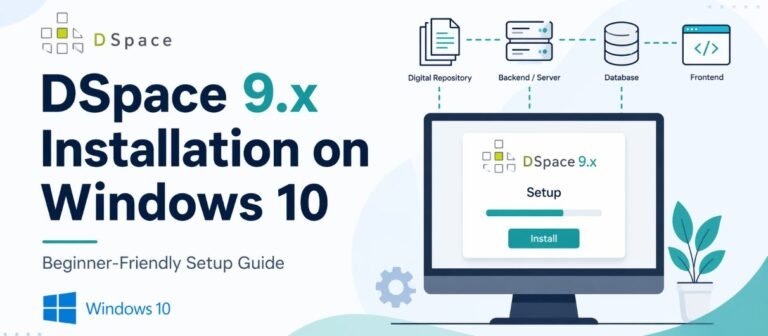
A DSpace Docker Setup helps you run DSpace with containers instead of installing every dependency manually on your server. For beginners, this can make the first setup easier because Docker keeps the DSpace backend, frontend, database, and search service in a more controlled environment.
DSpace is an open-source repository platform used by universities, libraries, research centers, and institutions to manage digital collections. The current DSpace platform is split into a backend REST API and a frontend user interface, especially in DSpace 7 and later versions. A 2025 DSpace installation guide also notes that DSpace 7 and above are separated into a “frontend” user interface and a “backend” server API.
What Is DSpace Docker Setup?
A DSpace Docker Setup means running DSpace through Docker containers. Instead of installing PostgreSQL, Solr, DSpace backend, and the Angular frontend manually, Docker Compose can start multiple connected services from configuration files.
Docker Compose is designed for defining and running multi-container applications. It lets you manage services, networks, and volumes in a YAML file, then start them with one command. That makes it a good fit for DSpace because DSpace needs more than one service to work properly.
How DSpace Works in Docker
A DSpace Docker setup normally has several connected parts. The backend container runs the DSpace REST API. The frontend container runs the Angular user interface. PostgreSQL stores the repository data. Solr handles search and indexing.
The official DSpace Docker Compose README for DSpace 9.x explains that the Docker Compose scripts can start the DSpace REST API backend and can optionally start the DSpace user interface frontend in Docker. It also lists backend compose files, CLI compose files, database restore files, Angular frontend compose files, Shibboleth demo files, and IIIF-related compose tools.
| Docker Service | What It Does | Beginner Explanation |
|---|---|---|
| DSpace backend | Runs REST API | The main DSpace server |
| DSpace frontend | Runs Angular UI | The public website interface |
| PostgreSQL | Stores data | The database for communities, collections, items, users |
| Solr | Handles search | Makes searching and indexing work |
| Volumes | Store persistent files | Keeps data after containers restart |
| Network | Connects services | Lets containers talk to each other |
DSpace Docker Setup Requirements
Before starting a DSpace Docker Setup, you need Docker installed, Docker Compose available, Git for downloading source files, and enough system resources. Beginners should use a clean Ubuntu server, a local Linux machine, or a development machine where Docker works correctly.
Docker’s official documentation says Docker Desktop includes Docker Compose along with Docker Engine and the Docker CLI, while Linux users can install the Docker Compose plugin separately. For Linux, the official Compose plugin installation page shows the command docker compose version as the verification step after installation.
| Requirement | Recommended for Beginners |
|---|---|
| Operating system | Ubuntu server or Linux-based development machine |
| Docker | Latest stable Docker Engine or Docker Desktop |
| Docker Compose | Docker Compose v2 plugin |
| Git | Needed to clone DSpace source |
| RAM | 8 GB is safer for testing |
| Disk space | 20 GB+ for testing, more for real repository data |
| Ports | 8080, 4000/3000, 5432, 8983 may be used |
| Internet | Needed to pull images and dependencies |
DSpace Docker Setup vs Manual DSpace Installation
Manual DSpace installation gives you more direct control, but it also requires careful setup of Java, Maven, PostgreSQL, Solr, Tomcat or server components, and configuration files. Docker setup keeps these services more packaged and repeatable.
For beginners, Docker is usually easier for testing and learning. Manual installation may be better for production when the institution has an experienced system administrator and a clear deployment policy.
| Feature | DSpace Docker Setup | Manual DSpace Setup |
|---|---|---|
| Beginner friendliness | Easier for testing | Harder |
| Dependency setup | Mostly containerized | Manual |
| Repeatability | High | Depends on server notes |
| Debugging | Container logs | System logs and services |
| Production control | Needs careful planning | More traditional |
| Best use | Testing, development, staging | Production, custom hosting |
Step-by-Step DSpace Docker Setup Workflow
The safest beginner workflow is to prepare Docker first, download the correct DSpace version, check the official Docker Compose files, start the containers, and then verify each service.
A simple workflow looks like this:
docker --version
docker compose version
git --version
After confirming the tools, clone the DSpace repository or download the release you want. DSpace’s download page currently highlights DSpace 9.2 as the latest release and links to installation instructions and release downloads.
A beginner-friendly setup flow:
git clone https://github.com/DSpace/DSpace.git
cd DSpace
git checkout dspace-9_x
docker compose up -d
The exact commands can change by DSpace version and branch, so always compare your commands with the Docker Compose README for your DSpace version. The DSpace 9.x Docker Compose README explains that the root project contains primary Dockerfiles and Docker Compose scripts for starting the backend.
Understanding DSpace Docker Compose Files
Docker Compose files are the “map” of your DSpace Docker setup. They define the containers, ports, environment variables, volumes, and networks.
In the DSpace Docker Compose documentation, the primary backend files include docker-compose.yml for backend components and docker-compose-cli.yml for running DSpace CLI tasks. Additional files can help with assetstore setup, ingest testing, database restore, Angular frontend startup, Shibboleth demo testing, and IIIF setup.
| Compose File | Purpose |
|---|---|
docker-compose.yml | Starts main DSpace backend services |
docker-compose-cli.yml | Runs DSpace command-line tasks |
docker-compose-angular.yml | Starts DSpace frontend UI |
db.restore.yml | Helps restore database dumps |
cli.ingest.yml | Runs ingest-related tasks |
docker-compose-iiif.yml | Starts IIIF-related demo service |
DSpace Backend Docker Setup
The DSpace backend is the REST API server. In a Docker setup, this backend runs inside a container and connects to PostgreSQL and Solr containers.
The DSpace 8.x Docker Compose file shows a backend service, a PostgreSQL database service, and a Solr service. It also shows persistent volumes for the assetstore, PostgreSQL data, and Solr data. This is important because repository data must survive container restarts.
Beginner check:
docker compose ps
docker compose logs dspace
If the backend container stops, check the logs before changing files. The logs usually tell you if the database is not ready, Solr cannot connect, or configuration is wrong.
DSpace Frontend Docker Setup
The DSpace frontend is the public user interface. In modern DSpace, this is usually the Angular frontend. It talks to the backend REST API.
If the frontend opens but shows errors, the backend URL may be wrong, the REST API may not be reachable, or browser requests may be blocked by configuration. For beginners, the first test is to confirm that the backend is running before troubleshooting the frontend.
Use this order:
- Start backend services.
- Confirm REST API responds.
- Start frontend service.
- Confirm frontend points to the correct backend URL.
- Check browser console if the page is blank.
PostgreSQL and Solr in DSpace Docker
PostgreSQL is where DSpace stores structured data. Communities, collections, items, users, metadata, permissions, and many other records depend on the database.
Solr is used for search and indexing. If Solr is not running or its data is missing, DSpace search may fail or return incomplete results. In the DSpace 8.x Docker Compose example, the Solr service initializes multiple Solr cores such as authority, oai, search, and statistics.
| Component | If It Fails | Common Symptom |
|---|---|---|
| PostgreSQL | Backend cannot fully start | Database connection errors |
| Solr | Search/indexing breaks | Search gives errors or empty results |
| Assetstore volume | Files may be missing | Bitstreams/downloads fail |
| Frontend | UI fails | Blank page or API errors |
| Backend | Main API fails | Frontend cannot load data |
Useful Docker Commands for DSpace Beginners
These commands help you check and manage a DSpace Docker setup. Use them from the folder that contains the Docker Compose file.
| Command | What It Does |
|---|---|
docker compose up -d | Starts services in the background |
docker compose down | Stops and removes containers, not named volumes by default |
docker compose ps | Shows running containers |
docker compose logs | Shows logs for all services |
docker compose logs dspace | Shows backend logs |
docker compose restart | Restarts services |
docker volume ls | Lists Docker volumes |
docker compose pull | Pulls newer images |
docker compose build | Rebuilds local images |
Do not run volume deletion commands unless you know exactly what you are doing. Deleting PostgreSQL, Solr, or assetstore volumes can remove important repository data.
Running DSpace CLI Tasks in Docker
DSpace command-line tasks are often needed for administration. In Docker, you usually run these tasks through a CLI container.
The official DSpace 9.x Docker Compose README gives a general format for running DSpace CLI scripts with Docker Compose: docker compose -p d9 -f docker-compose-cli.yml run --rm dspace-cli [command] [parameters]. This means you do not always enter the backend container directly; you can run supported DSpace commands through the CLI compose setup.
Example pattern:
docker compose -p d9 -f docker-compose-cli.yml run --rm dspace-cli helpUse the exact project name and compose files that match your setup.
Common DSpace Docker Setup Errors and Fixes
Most beginner errors come from port conflicts, containers starting in the wrong order, missing environment variables, broken frontend/backend URLs, or deleted volumes.
| Error | Likely Cause | Beginner Fix |
|---|---|---|
| Port already in use | Another service uses same port | Change port or stop old service |
| Backend exits immediately | Database or config error | Check docker compose logs dspace |
| Database connection failed | PostgreSQL not ready or wrong config | Check database container logs |
| Search does not work | Solr issue | Check Solr container and cores |
| Frontend blank page | Backend URL problem | Check browser console and REST URL |
| File downloads fail | Assetstore issue | Check assetstore volume |
| CLI command fails | Wrong compose file/project name | Use the documented CLI compose command |
| Changes not visible | Browser/container cache | Restart and clear cache |
DSpace Docker Setup for Testing vs Production
A DSpace Docker Setup is excellent for learning, testing, demos, development, and staging. It lets you start and stop a working stack without manually installing every dependency.
Production is different. A production repository needs HTTPS, backups, persistent storage, monitoring, email, handle/identifier planning, security updates, user roles, storage growth planning, and a disaster recovery plan.
| Area | Testing Setup | Production Setup |
|---|---|---|
| Data | Sample data | Real repository data |
| Backup | Optional for testing | Required |
| HTTPS | Not always needed | Required |
| Storage | Small local volume | Planned persistent storage |
| Monitoring | Basic logs | Regular monitoring |
| Updates | Flexible | Controlled change process |
| Security | Low-risk demo | Institutional responsibility |
Docker can be used in production, but beginners should not treat a test Docker Compose stack as a complete production plan.
DSpace Backup, Restore, and Volumes in Docker
Docker containers are replaceable. Docker volumes are where persistent data may live. This is one of the most important beginner concepts in DSpace Docker setup.
If your PostgreSQL data, Solr data, or assetstore files are stored in Docker volumes, deleting those volumes can delete repository data. The DSpace 8.x Docker Compose example includes volumes for assetstore, PostgreSQL data, and Solr data.
Beginner rule:
Stopping containers is usually safe.
Deleting volumes can be dangerous.
Before deleting or rebuilding anything, confirm where your database and assetstore are stored.
Best Practices After DSpace Docker Setup
After the containers are running, do not stop at the welcome screen. A working DSpace setup still needs configuration.
Post-setup checklist:
| Task | Why It Matters |
|---|---|
| Create admin account | Needed for management |
| Configure site name | Makes repository identifiable |
| Configure mail | Enables user notifications |
| Set handle/identifier policy | Supports long-term item links |
| Create communities | Organizes content |
| Create collections | Allows item submission |
| Review metadata forms | Improves deposit quality |
| Plan backups | Protects repository data |
| Test uploads/downloads | Confirms assetstore works |
| Test search | Confirms Solr works |
Simple DSpace Docker Setup Example for Beginners
Imagine you want to test DSpace locally before installing it on a real server. A beginner-friendly goal is not to customize everything on day one. The first goal is simply to confirm that all containers run.
Basic test plan:
docker compose up -d
docker compose ps
docker compose logs
Then open the backend and frontend URLs based on the ports in your compose file. If something fails, do not reinstall immediately. Read the logs first.
FAQs About DSpace Docker Setup
DSpace Docker Setup means running DSpace services in Docker containers. It usually includes the DSpace backend, frontend, PostgreSQL database, Solr search service, Docker volumes, and Docker networks.
For beginners, Docker is usually easier for testing because it reduces manual dependency setup. Manual installation gives more control but requires more Linux, Java, database, Solr, and server knowledge.
Yes. DSpace uses PostgreSQL as its database in standard deployments. In Docker, PostgreSQL commonly runs as a separate container.
Yes. Solr is used for search and indexing in DSpace. If Solr is not working, search-related features may fail.
The DSpace backend is the REST API server. It handles repository data, authentication, items, metadata, collections, communities, and other server-side functions.
The DSpace frontend is the user interface, usually built with Angular in newer DSpace versions. It communicates with the backend REST API.
Docker can be part of a production plan, but a test Compose setup is not enough by itself. Production needs backups, HTTPS, monitoring, security updates, persistent storage, and careful configuration.
A blank frontend often means the frontend cannot reach the backend REST API, the backend is not running, the API URL is wrong, or the browser is blocking requests.
Check logs with docker compose logs. Common causes include database connection problems, wrong configuration, missing environment variables, port conflicts, or a failed build.
Do not delete Docker volumes unless you know what they contain. PostgreSQL, Solr, and assetstore volumes may contain important repository data.
Use the CLI compose file for your DSpace version. The DSpace 9.x Docker Compose README shows a pattern using docker-compose-cli.yml and a dspace-cli service.
Use the latest stable version recommended by the official DSpace download page unless your institution needs a specific version. The DSpace download page currently lists DSpace 9.2 as the latest release.