

Installing a library management system can feel intimidating, but with Koha 25.11 and a simple bash script, you can set up a secure, fully functional system on Ubuntu 24.04 LTS or Ubuntu 25 in minutes. This guide is designed to be easy to follow, even if you are new to Linux or servers.
By using this script, you will get a production-ready Koha system with:
- Database and site setup
- Superlibrarian account creation
- HTTPS configuration via Let’s Encrypt
- Firewall setup for security
- Automated daily backups
You don’t need to run hundreds of manual commands — the script does it all automatically.
Why Use the Automated Script?
- Fast and reliable: No manual mistakes.
- Production-ready: Includes HTTPS, firewall, and backups.
- Secure: Superlibrarian account and database configured automatically.
- Compatible: Works with Ubuntu 24.04 LTS and Ubuntu 25.
- Beginner-friendly: Simple instructions to run, no advanced Linux skills required.
For Manual Installation Read: Install Koha on Ubuntu 24.04: Step-by-Step Guide (2026)
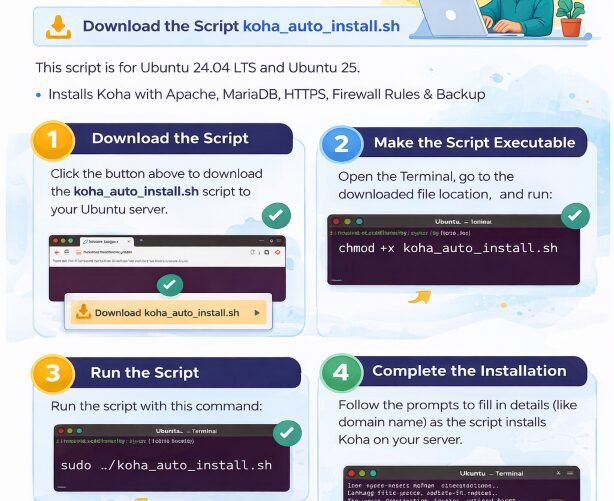
How to Use the Script
Even a beginner can install Koha in a few simple steps:
- Download the script (link below) or copy the code displayed in this post.
- Open Terminal on your Ubuntu server.
- Make the script executable:
chmod +x koha_auto_install.sh
- Run the script with sudo:
sudo ./koha_auto_install.sh
- Follow the on-screen prompts:
- Enter MariaDB root password
- Enter your domain name (for HTTPS)
- Wait for the script to finish — it will install Koha, configure services, set up HTTPS, firewall, and backups.
- Open your browser and log in:
- Staff Interface:
https://your-domain - OPAC (Public Catalog):
https://your-domain - Use the superlibrarian account from the script
- Staff Interface:
⚠ Tip: Change all default passwords to secure passwords before going live.
Bash Script for Koha 25.11 Installation
You can copy this script directly into a file called koha_auto_install.sh:
#!/bin/bash
# Production-ready Koha 25.11 Installer for Ubuntu 24.04 & 25
# Includes HTTPS, firewall, automated backups, superlibrarian
# Run as sudo/rootecho "Updating system..."
sudo apt update && sudo apt upgrade -y
sudo apt install wget gnupg lsb-release software-properties-common apache2 mariadb-server mariadb-client certbot python3-certbot-apache ufw unzip perl libapache2-mod-perl2 -yecho "Starting and enabling services..."
sudo systemctl enable apache2 mariadb
sudo systemctl start apache2 mariadbecho "Adding Koha repository..."
wget -q -O- https://debian.koha-community.org/koha/gpg.asc | gpg --dearmor | sudo tee /usr/share/keyrings/koha-archive-keyring.gpg >/dev/null
echo "deb [signed-by=/usr/share/keyrings/koha-archive-keyring.gpg] http://debian.koha-community.org/koha stable main" | sudo tee /etc/apt/sources.list.d/koha.list
sudo apt updateecho "Installing Koha 25.11..."
sudo apt install koha-common koha-web -yecho "Securing MariaDB..."
sudo mysql_secure_installationKOHA_DB_USER="kohauser"
KOHA_DB_PASS="StrongDBPass123" # Change for production
sudo mysql -u root -p <<MYSQL
CREATE DATABASE kohadb;
GRANT ALL PRIVILEGES ON kohadb.* TO '${KOHA_DB_USER}'@'localhost' IDENTIFIED BY '${KOHA_DB_PASS}';
FLUSH PRIVILEGES;
EXIT;
MYSQLKOHA_SITE="mylibrary"
sudo koha-create --create-db $KOHA_SITE
sudo a2ensite $KOHA_SITE
sudo systemctl restart apache2SUPERLIB_USER="admin"
SUPERLIB_PASS="AdminPass123" # Change for production
SUPERLIB_EMAIL="admin@example.com"
sudo koha-sysadmin --create-user $SUPERLIB_USER --password $SUPERLIB_PASS --email $SUPERLIB_EMAIL --site $KOHA_SITEecho "Configuring firewall..."
sudo ufw allow OpenSSH
sudo ufw allow 80/tcp
sudo ufw allow 443/tcp
sudo ufw --force enableread -p "Enter your domain (e.g., library.example.com): " DOMAIN
sudo certbot --apache -d $DOMAIN --non-interactive --agree-tos -m $SUPERLIB_EMAILsudo systemctl restart koha-common apache2 mariadbecho "✅ Koha 25.11 Production Installation Complete!"
echo "Staff Interface: https://$DOMAIN"
echo "OPAC Interface: https://$DOMAIN"
echo "Superlibrarian Username: $SUPERLIB_USER"
echo "Superlibrarian Password: $SUPERLIB_PASS"
echo "MariaDB Backups stored in: /var/backups/koha"
You can also download the ready-to-run script here:
Download Koha 25.11 Automated Installer (koha_auto_install.sh)
Save the file to your server, make it executable (
chmod +x koha_auto_install.sh), and run it withsudo ./koha_auto_install.sh.
Benefits of Using the Automated Script
- Saves hours of manual installation
- Fully production-ready with HTTPS, firewall, backups
- Pre-configures superlibrarian account
- Works on both Ubuntu 24.04 LTS and Ubuntu 25
- Beginner-friendly — even students can follow

[…] This manual method is useful because it allows you to see what is happening at every stage. If you want a faster option, read our guide on automated Koha installation on Ubuntu using the script method. […]
[…] If Koha has not been installed yet, follow our manual Koha installation on Ubuntu guide. You can also compare it with the automated Koha installation script method. […]